Understanding HTML Tags and Elements (Beginner Friendly Guide)
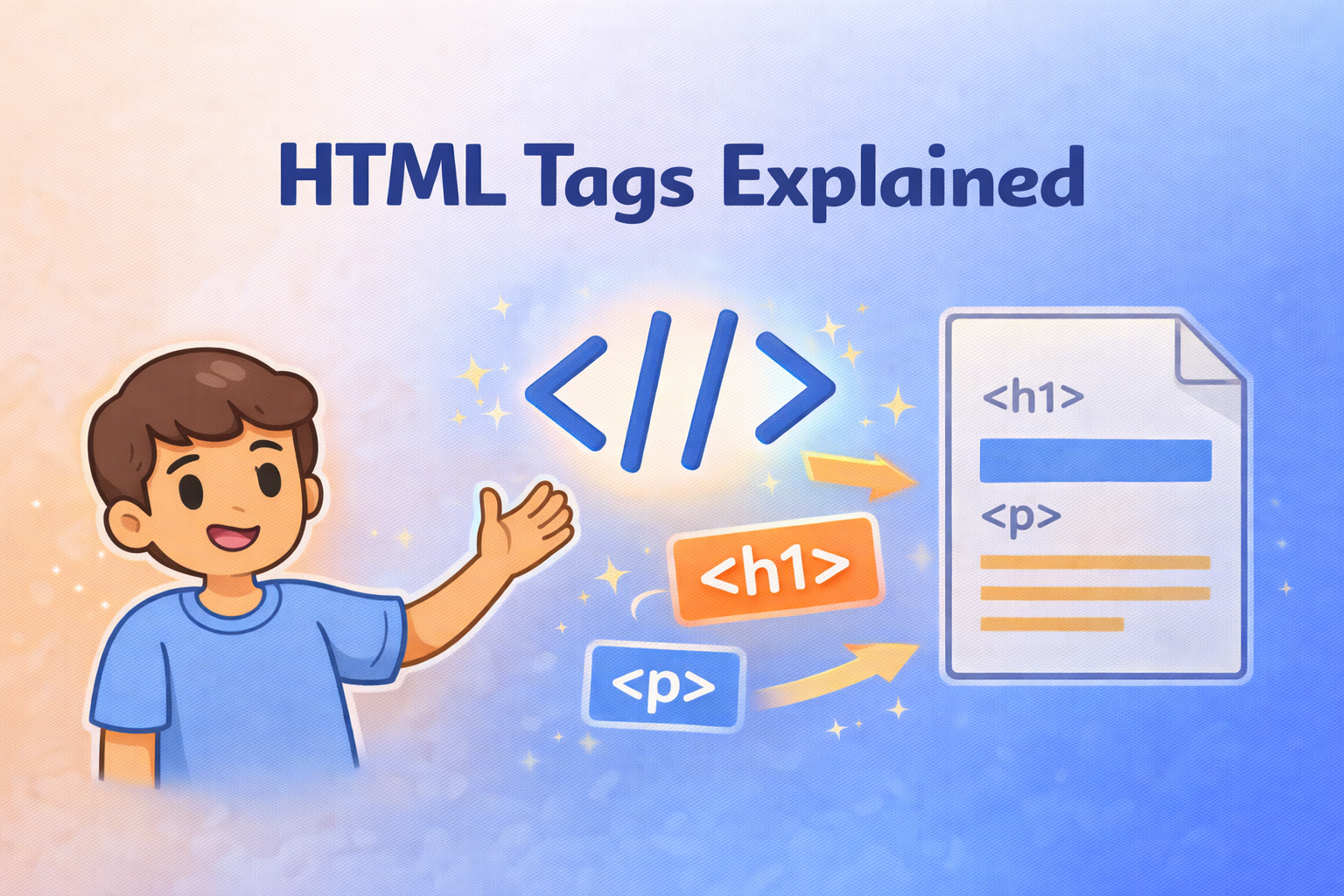
I build and explore modern web tech, scalable architectures, and full-stack solutions.
When I started learning web development, HTML was my first step.
I remember opening my laptop and seeing words like <html>, <p>, <div>.
Honestly, I felt scared.
Everyone was saying “HTML is easy”, but I was confused.
What is a tag? What is an element? Why are there so many brackets?
I am not very strong in English, so reading official documents was hard for me.
Many tutorials used big words and moved very fast.
I made mistakes.
I forgot to close tags.
My page broke and I did not know why.
Slowly, I understood one thing.
HTML is not magic.
It is just a simple structure, like writing a basic sentence.
In this blog, I will explain HTML tags and elements the way I understood them.
Simple words. No pressure. Just learning together.
WHAT IS HTML?
HTML means HyperText Markup Language.
Big name, but simple job.
HTML is used to create the structure of a webpage.
Think of it as the skeleton of a body.
HTML does not add color.
HTML does not add animation.
It only says:
This is a heading
This is a paragraph
This is a box
This is a small text
Browsers like Chrome read HTML and show the page to us.
Without HTML, there is no webpage.
WHAT IS AN HTML TAG?
An HTML tag is like a label.
It tells the browser what type of content it is reading.
Example:
<p>means paragraph<h1>means heading<div>means a box
Most tags have:
an opening tag
a closing tag
The closing tag has a /.
OPENING TAG, CLOSING TAG, AND CONTENT
Let us see a small example.
<p>Hello World</p>
<p>→ opening tagHello World→ content</p>→ closing tag
This whole line shows one paragraph on the page.
If you forget the closing tag, the browser gets confused.
I did this mistake many times.
WHAT IS AN HTML ELEMENT?
This is where many beginners get confused.
An HTML element means:
opening tag
content
closing tag
Together.
So this is one element:
<p>Hello World</p>
Tag is just <p> or </p>
Element is the full thing.
Tag is a part.
Element is the full box.
SELF-CLOSING (VOID) ELEMENTS
Some elements do not have content.
So they do not need a closing tag.
Example:
<br>
<img>
<br>is used for line break<img>is used for image
These are called self-closing or void elements.
No content inside.
So no closing tag.
BLOCK-LEVEL VS INLINE ELEMENTS
This part sounds big, but idea is simple.
Block-level elements
Start on a new line
Take full width
Examples:
<div><p><h1>
Inline elements
Stay in the same line
Take only needed space
Examples:
<span><a><strong>
Think like this:
Block is a full box.
Inline is a word inside a sentence.
SIMPLE REAL-LIFE ANALOGY
Think of HTML like a school notebook.
Heading tag
<h1>is the chapter titleParagraph tag
<p>is normal writing<div>is a big box to group things<span>is a small highlight inside a line
Tag is like a label.
Element is like the full sentence with label.
Once I saw it this way, things became calm.
PRACTICAL PART
<h1>My First Page</h1>
<p>This is my first paragraph.</p>
<div>
  <span>Small text</span>
</div>
<h1>shows a big heading<p>shows normal text<div>groups content<span>is small inline text
That is all.
No need to remember everything.
COMMONLY USED HTML TAGS
When I started, I tried to learn all tags at once.
That was a big mistake.
You only need a few important HTML tags to begin.
Let me explain them one by one, the same way I learned.
HEADINGS – <h1> to <h6>
Headings are used for titles and sub-titles.<h1> is the biggest.<h6> is the smallest.
Think of them like book headings.
<h1>Main Title</h1>
<h2>Sub Title</h2>
<h3>Small Heading</h3>
<h4>Smaller Heading</h4>
<h5>Very Small Heading</h5>
<h6>Smallest Heading</h6>
Use only one <h1> per page.
This helps Google understand your page.
PARAGRAPH – <p>
Paragraph tag is used for normal text.
<p>This is a paragraph.</p>
Whenever you write content, use <p>.
Do not write text without tags.
LINE BREAK – <br>
<br> moves text to the next line.
It has no closing tag.
Hello<br>
How are you?
Use it only when needed.
Do not overuse.
IMAGE – <img>
Image tag is used to show images.
It is a self-closing tag.
<img src="image.jpg" alt="My Image">
src→ image locationalt→ text if image does not load
Always add alt. It is important.
DIV – <div>
<div> is a container or box.
It groups content together.
<div>
  <p>This is inside a div</p>
</div>
You will use <div> a lot.
It helps in layout and design later.
ANCHOR (LINK) – <a>
Anchor tag is used to create links.
<a href="https://google.com">Go to Google</a>
hrefmeans link addressText inside shows on the page
This is how websites connect to each other.
VIDEO – <video>
Video tag is used to show videos.
<video controls>
  <source src="video.mp4">
</video>
controlsgives play and pause buttonssourceis the video file
Simple and useful.
HORIZONTAL LINE – <hr>
<hr> draws a horizontal line.
Used to separate content.
<hr>
No closing tag needed.
INPUT – <input>
Input tag is used to take user input.
<input type="text">
It is used in forms.
Like name, email, password.
You will learn more later.
For now, just know it exists.